How to use an Android tablet as a second monitor for Windows
Use an Android tablet or phone to extend your Windows desktop or mirror your main screen. A basic connection for one computer over your local network is free and works without signing in.
Download for Windows Download the Android app
Requires Windows 10 or 11 (x64), Android 6 or later (ARMv7 or ARM64), and both devices on the same local network. Your PC can use Ethernet if it is on the same network as the tablet.
1. Install XHong Display Assistant on both devices
- Download the Windows installer, install the assistant and open it.
- On Android, download the APK from the official download page and open it. If Android asks, allow your browser or file manager to install this APK. You can turn that permission off again after installation.
- Open the Android app and keep the Windows assistant running. If the app offers a remote-access trial, tap Cancel to continue with local setup.
2. Pair your tablet with your Windows PC
- On Windows, click Add device (添加设备) to display a QR code.
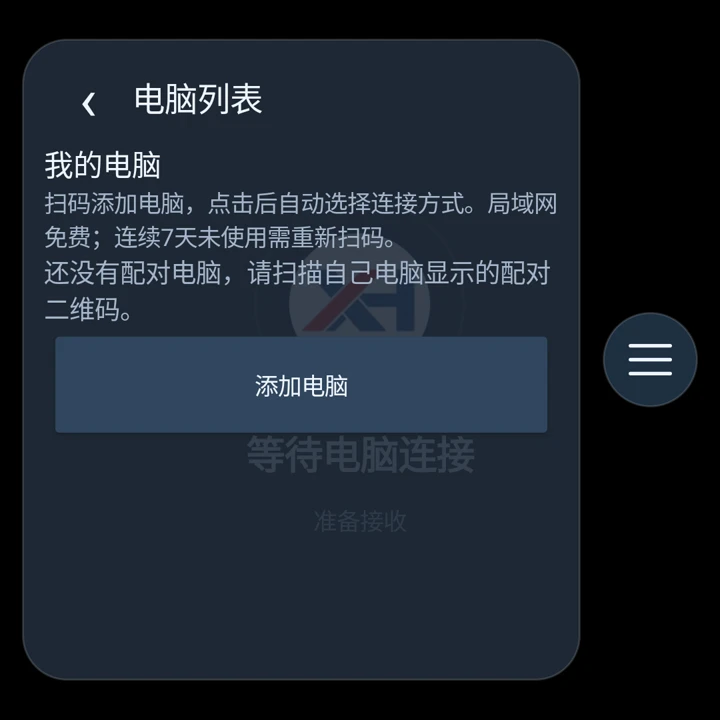
- In the Android app, open the computer list (电脑列表), choose Add computer (添加电脑), then Scan (扫一扫). Allow camera access if prompted and scan the code shown on your PC.
- Confirm the computer shown in the app and select it from the list to connect. Once paired, select the same computer from the list for your next session.
3. Extend your desktop or mirror it
Extend gives the tablet its own desktop space. If prompted, click Enable extended display (启用扩展屏组件) in the Windows assistant and finish setting up the display component. After connecting, choose Extend (扩展) in the Android app’s display mode controls.
If needed, open Settings → System → Display in Windows, set the displays to extend and arrange the tablet on the correct side of your main screen. Drag a window past that edge to check the setup.
Choose Mirror (镜像) in the app’s display mode controls to show the same desktop on both screens.
Troubleshooting
The QR code has expired
On the PC, click Refresh QR code (刷新二维码), then scan the new code in the Android app.
The tablet cannot connect to the PC
Keep both apps open and confirm both devices are on the same local network. Guest Wi-Fi can prevent devices from reaching each other. On a trusted home network, allow the Windows assistant through the firewall for private networks if Windows prompts you.
The same desktop appears on both screens
Check that the Windows assistant’s extended display component is enabled and that the Android app is set to Extend. Use Windows display settings to check the new display and its arrangement.
Using an iPad instead? Set up an iPad as a second monitor for Windows.