Mirror or extend
Select your primary screen to mirror. For an independent desktop, click Enable extended display, then select the extra display. Set it to Extend in Windows display settings if needed.
Open Xianhong Display Assistant on your computer, use its built-in tools to install the iPad app, then follow the steps below to connect.
For Windows 10 / 11 · x64
Choose Windows Setup on the download page. Run the downloaded Setup.exe and follow the installer, then open Xianhong Display Assistant from the desktop or Start menu. The tablet app and guide are included. From 0.9.24, Check for updates shows download progress. After verification, click Install now; the assistant closes, installs and reopens automatically, preserving settings. For the first upgrade from an older version, run the new Setup.exe from the official website; no file renaming is needed.
Go to downloads →Use a data-capable USB cable. Keep iPad unlocked, tap Trust when prompted and enter the iPad passcode.
If Windows cannot detect iPad, install or update Apple Devices and confirm it can see the tablet before returning to the assistant. Apple device detection help
Open the iPad installation tools in Xianhong Display Assistant. Prepare the tools, select your device and sign in with your Apple Account as prompted. Signing and installation run on your computer. The password is not sent to the XHongSoft website; sign-in credentials are saved in local files. Authentication contacts Apple and may use third-party authentication assistance. Enter a verification code when prompted. Never send passwords or verification codes in feedback.
Click Install for the first installation, Upgrade for updates, or Renew before expiry. Use the original signing Apple Account for updates and renewal.
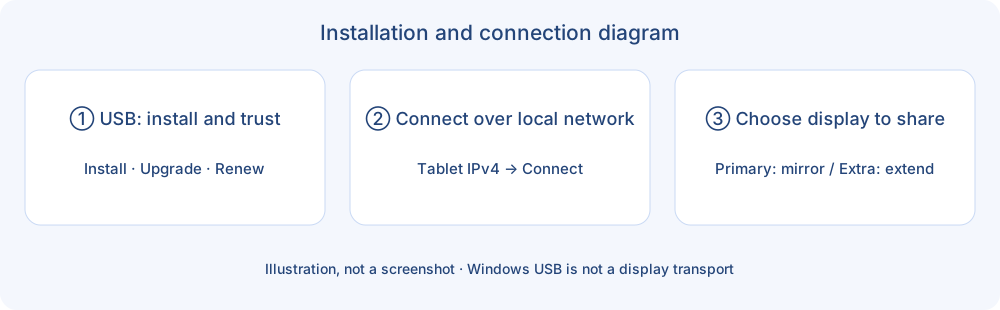
Illustration; refer to the current app for the actual interface
Keep both apps open. If iPad asks for developer trust or Developer Mode, follow its system instructions and reopen the app.
On Windows, USB is for installation and trust. Display streaming uses the local network. Join the same network and allow local network access.
Read the current IPv4 address in iPad Settings → Wi-Fi details. Enter it in Tablet current Wi-Fi IPv4 address on Windows, select the display to share and click Connect. Recheck the address after changing networks.
Select your primary screen to mirror. For an independent desktop, click Enable extended display, then select the extra display. Set it to Extend in Windows display settings if needed.
Use More on iPad for mode, aspect ratio and keyboard; turn Speaker on in Audio at the top. Touch control requires input permissions on the computer; on Mac, allow Accessibility when prompted. Test a tap and a drag first.
Connect and unlock iPad via USB. Check expiry in the desktop installation tools, then renew or update the app. Complete Apple authentication again if prompted.
Keep both apps open, check for a changed iPad IP and allow firewall and local network access. Try a regular home Wi-Fi network. Mac also supports USB display streaming; Windows USB is only for installation and trust.
Check the selected display, then screen recording and input permissions, plus the Speaker switch in Audio at the top of iPad. Reopen the assistant after changing permissions.
Closing the lid may put your Mac to sleep. Start with the lid open. For closed-lid use, configure a tool such as Amphetamine and check its lid settings. Continuous closed-lid operation is not guaranteed on every Mac.